
Most ChatGPT Users Don't Know It Can Now Pilot Your Mac From Your Phone
ChatGPT's Codex can pair with your desktop over an authenticated QR code, letting you approve, pause, and steer multi-step coding tasks from your phone. It's no longer just chat.
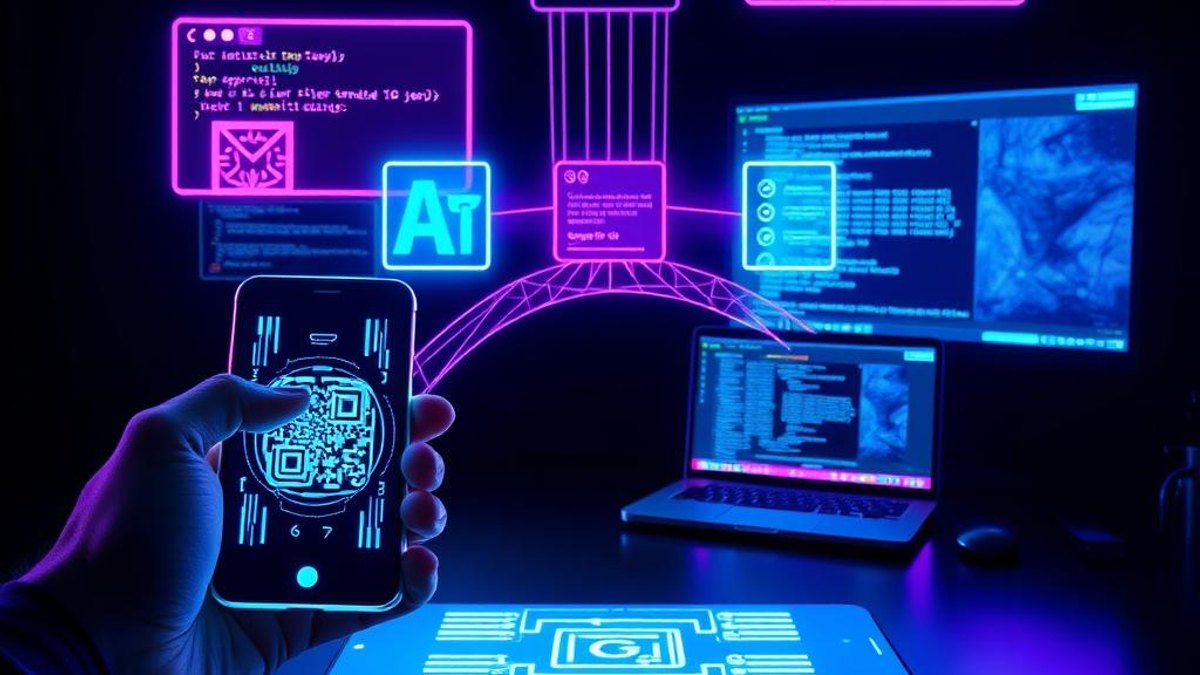
01. What It Is
Codex Remote is a capability that connects the Codex App running on your Mac or Windows computer to the Codex section inside the ChatGPT mobile app. Once paired, your phone becomes a control surface for the work happening on your desktop—you can approve commands, review the results, and keep tasks moving without sitting at your keyboard.
The connection is established through a one-to-one authenticated QR code shown in the Codex App sidebar. You scan it once with your phone's ChatGPT app, both devices confirm they're on the same account and workspace, and from then on your phone can start threads, send follow-up instructions, and receive notifications as tasks progress.
Crucially, the phone doesn't do the heavy lifting. Your desktop host provides all the compute, files, credentials, and permissions—the phone controls and monitors. Think of it as a remote for a machine that's already doing the work, not a replacement for that machine.
Why It Matters
Long coding or automation tasks used to chain you to your desk waiting for approvals. Now you can step away, get a notification when Codex needs a decision, review a diff or test result on your phone, and tap to continue—turning dead waiting time into freedom while your desktop keeps computing.
Who Can Benefit
- Developers running long multi-step Codex tasks who don't want to babysit their screen
- Engineers who step into meetings but need to keep pipelines and reviews moving
- Anyone who wants to approve or pause automated actions from anywhere in the house
- Teams on Business or Enterprise plans coordinating supervised remote work
02. Step-by-Step Guide
- 1
Update both apps
Install the latest Codex App on your Mac or Windows host and update the ChatGPT app on your iOS or Android phone. Outdated versions won't pair correctly.
- 2
Sign in with the same account
Make sure both the desktop Codex App and the phone's ChatGPT app are signed into the identical ChatGPT account and workspace. Complete any multi-factor authentication, SSO, or passkey prompts if your account requires them.
- 3
Open the pairing screen on your host
In the Codex App on your computer, open the sidebar and select 'Set up Codex mobile'. A QR code will appear on screen.
- 4
Scan with your phone
Open the ChatGPT app on your phone, go to the Codex area, and scan the QR code shown on your desktop. This creates the authenticated one-to-one pairing.
- 5
Keep the host awake and online
For the connection to work, your computer must stay awake, be online, and have the Codex App running. It's not built for unattended or fully passive remote use.
- 6
Control and monitor from mobile
From your phone you can now start or continue threads, send follow-up instructions, review outputs, diffs, test results, screenshots, and terminal output, approve or reject actions, and get notifications as things happen.
Pro Tips
- Connections you've actively used since June 8, 2026 auto-pair after updating the apps—older inactive ones need a fresh QR scan.
- Enable notifications for the ChatGPT app so you're alerted the moment Codex needs an approval, instead of checking manually.
- Review diffs and terminal output on the phone before approving—it's a genuine safety checkpoint, not just a start button.
Warnings & Limitations
- Codex Remote is accessed as 'Codex' inside the ChatGPT mobile app—there is no separate app literally named 'Codex Remote'.
- The phone cannot develop independently; if your host goes to sleep or offline, control stops. It provides all compute, files, and credentials.
- On workspaces, an admin must enable Remote Control access in workspace permissions before your mobile connection will work.
- This is designed for supervised control, not unattended remote operation of your machine.
Related Tricks
Most Google Photos Users Don't Know It Can Now Remix Videos Like a Pro Editor
A new tool buried in the Create tab uses Gemini's Omni model to relight, restyle, and swap backgrounds in your short clips—no separate editing app required.
Most ChatGPT Users Don't Know You Can Now Interrupt Its Voice Mid-Sentence
ChatGPT's new GPT-Live voice listens and speaks at the same time—so you can cut in mid-response, switch to real-time translation, and keep the conversation flowing naturally.
Most People Don't Know Google Photos Can Now Remix Their Videos With AI—No App Switch
Google Photos quietly added Gemini Omni Video Remix, letting you restyle, relight, and reimagine videos already in your library—right inside the app, in seconds.