Most Gmail Users Don't Know This One Toggle Makes Emails Self-Destruct
Gmail has a built-in mode that strips away forward, copy, print, and download options and sets an expiration date on your message—no IT department or third-party app required.
01. What It Is
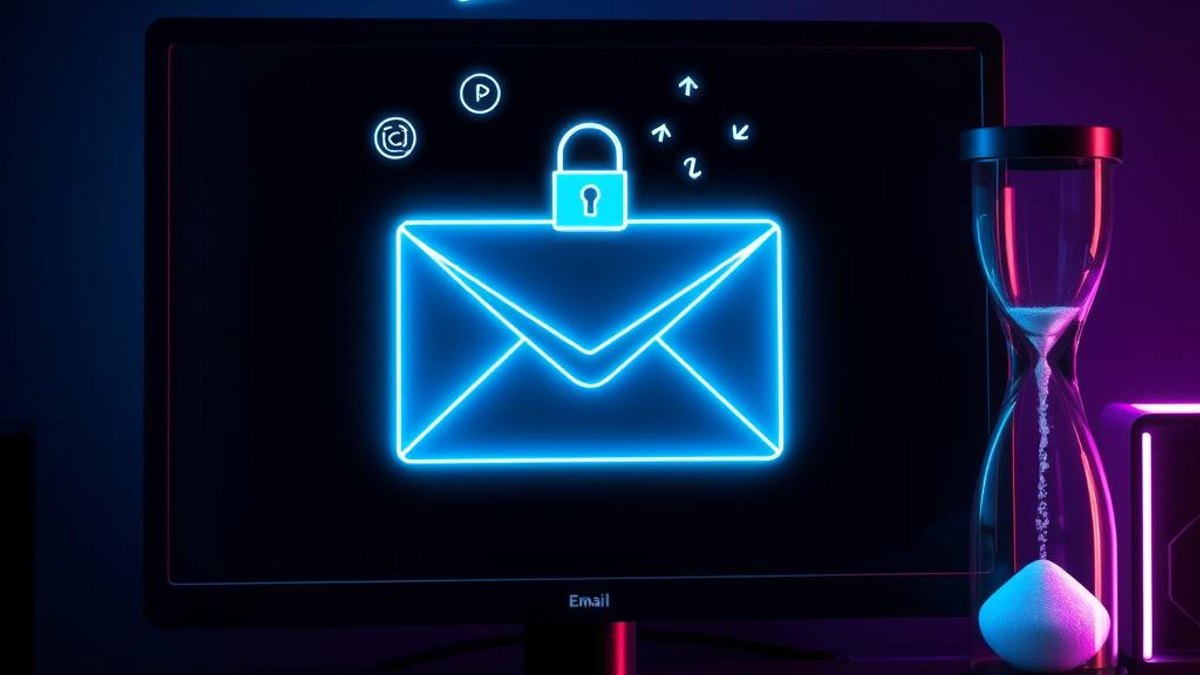
Confidential Mode is a privacy feature built directly into Gmail that turns an ordinary email into a time-limited, read-only message. When you enable it, the recipient sees your message but loses the usual buttons to forward, copy, print, or download it. These restrictions are applied automatically and the sender cannot turn them off—they're part of the package.
You also set an expiration date when composing. The message can be set to vanish after 1 day, 1 week, 1 month, 3 months, or 5 years, with the countdown starting the moment you hit send (not when the recipient opens it). For an extra layer, you can require an SMS passcode that the recipient must enter to open the email.
It's important to understand what this is and isn't. Confidential Mode uses access control, not end-to-end encryption—Google still stores and can read the content. It prevents casual or accidental sharing, but it cannot stop a determined recipient from snapping a screenshot or photographing the screen.
Why It Matters
For anyone sending sensitive information—contracts, login details, financial figures, personal records—this drastically lowers the risk of that information being casually forwarded or saved somewhere it shouldn't be. It also gives you a kill switch: you can revoke access at any time before expiration, so a message sent to the wrong person doesn't have to live forever.
Who Can Benefit
- Freelancers and consultants sharing quotes, drafts, or client data
- HR and recruiters handling personal candidate information
- Small business owners sending financial or contract details
- Anyone who has ever sent a sensitive email and wished they could take it back
02. Step-by-Step Guide
- 1
Open a new email on desktop
In Gmail on your computer, click Compose to open a new message window.
- 2
Turn on Confidential Mode
At the bottom of the compose window, click the 'Turn on confidential mode' icon—it looks like a small lock with a clock next to it.
- 3
Set your expiration date
Choose how long the message stays accessible: 1 day, 1 week, 1 month, 3 months, or 5 years. Remember the countdown begins the moment you send, not when it's read.
- 4
Add a passcode (optional)
Choose 'No SMS passcode' or 'SMS passcode'. With SMS passcode, the recipient gets a code by text that they must enter to open the message—useful for extra-sensitive content.
- 5
Compose and send
Write your email as usual and send. The recipient will see the message with forward, copy, print, and download disabled automatically.
- 6
Do it on mobile
In the Gmail app, tap Compose, tap the three-dot 'More options' menu, select 'Confidential mode', then set your expiration date and optional passcode.
- 7
Revoke access if needed
To pull a message back, go to your Sent folder, open the confidential email, and revoke access at any time before it expires.
Pro Tips
- Use the SMS passcode option for highly sensitive messages—it ensures only someone with the recipient's phone can open it.
- You can revoke access early from the Sent folder, so if you send to the wrong address you can cut it off immediately.
- Combine a short expiration (1 day) with a passcode for the strongest casual-leak protection.
- Works on both free Gmail and Google Workspace accounts.
Warnings & Limitations
- This is not end-to-end encryption. Google stores and can read the message content—it's access control, not true secrecy.
- Recipients can still take screenshots or photograph the screen, and determined users with third-party tools can bypass restrictions. It stops accidents, not adversaries.
- Confidential Mode messages cannot be scheduled for later sending.
- The forward, copy, print, and download restrictions cannot be turned off by the sender—they're always on in this mode.
- On some Google Workspace accounts, an administrator may need to enable the feature in the admin console first.
Related Tricks
Most Gmail Users Don't Know They Can Delete Every Draft at Once
If you've been deleting stray Gmail drafts one by one, there's a faster way. A single checkbox clears them all in seconds.
Most Google Drive Users Don't Know It Can File Everything For You—With One Click
Google Drive now uses Gemini to figure out where every loose file belongs and even creates folders to group them. You just review the plan and approve.
Most Teams Use OneNote Wrong—Its Pages Are an Infinite Canvas, Not a Notepad
OneNote pages aren't linear documents. You can click anywhere and drop text, images, tables, drawings, and even voice recordings across an expanding canvas—like a real notebook that syncs everywhere.