Most People Don't Know Google Meet Can Take Notes on Zoom and Teams Calls
Google Meet's AI scribe quietly grew beyond Meet. From your phone, it can now capture summaries and action items from Zoom and Teams meetings too.
01. What It Is
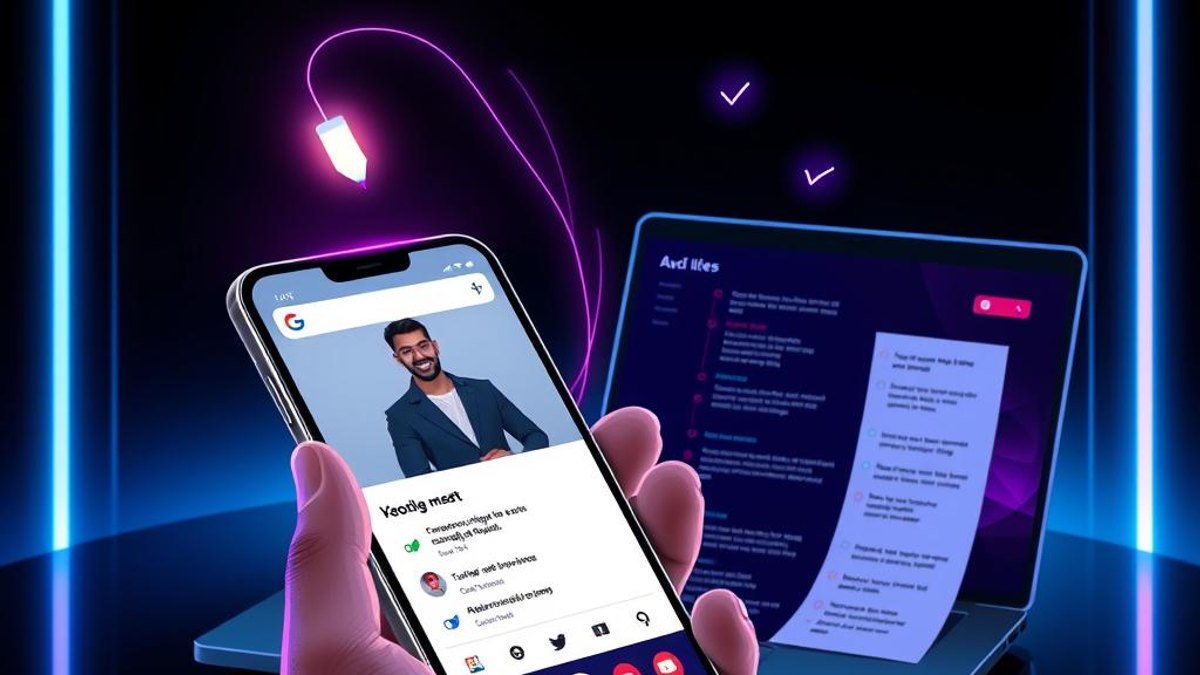
Google Meet's 'Take Notes for Me' started as a feature that only worked inside Meet calls, summarizing the conversation and pulling out action items automatically. As of April 2026, it evolved into a Gemini-powered capture layer that you can point at meetings hosted on other platforms like Zoom and Microsoft Teams.
The surprising part is that you trigger it from the Google Meet mobile app—you don't need a Meet call open at all. Gemini listens to the meeting audio, writes a structured summary, and saves it straight to a Google Doc that gets linked to the matching Calendar event.
This turns your phone into a portable AI scribe for almost any meeting you attend, regardless of which video tool the host chose. The notes land in a familiar Google Doc, ready to share or revisit later.
Why It Matters
Instead of frantically typing during a Zoom or Teams call—or paying for a separate transcription app—you get an automatic summary and action items saved to Google Docs. That's hours of post-meeting cleanup saved each week, and nothing important slips through the cracks.
Who Can Benefit
- Workspace users who attend lots of cross-platform meetings
- Project managers tracking action items across teams
- Consultants and freelancers who join clients' Zoom or Teams calls
- Anyone tired of switching between listening and note-taking
02. Step-by-Step Guide
- 1
Confirm you have an eligible plan
The meeting organizer must be on Google Workspace Business Standard, Business Plus, Enterprise Standard, or Enterprise Plus. A participant's plan does not unlock the feature—the organizer's plan is what counts.
- 2
Open the Google Meet app on your phone
Launch the Google Meet mobile app (Android or mobile/web app). You don't need to start or join a Meet call to use the capture feature for non-Meet meetings.
- 3
Point it at your Zoom or Teams meeting
Use the note-taking option to begin capturing the meeting you're attending on the other platform. Gemini handles the listening and summarizing in the background.
- 4
Set the meeting language
Choose the single language being spoken. The feature supports one language at a time—mixed-language meetings aren't currently supported.
- 5
Let everyone know it's recording notes
All participants are notified when note-taking is active via a pencil icon on screen. This keeps the process transparent for the room.
- 6
Find your notes in Google Docs
When the meeting ends, the summary and action items are saved automatically to a Google Doc and linked to the relevant Calendar event for easy retrieval.
Pro Tips
- Set the correct spoken language before the meeting starts so the summary stays accurate from the first minute.
- Because notes link to your Calendar event, schedule meetings in Calendar first to keep documents neatly organized.
- Open the saved Google Doc right after the call to assign owners to each action item while the context is fresh.
Warnings & Limitations
- The feature requires the meeting organizer to have an eligible Workspace plan—your own plan won't unlock it.
- Only one language per meeting is supported; conversations that switch between languages won't be captured cleanly.
- On Android, the live 'so far' summary during the meeting is not supported—that capability is desktop only.
- All participants are notified via an on-screen pencil icon, so this is not a discreet or hidden recording tool.
Related Tricks
Most Google Sheets Users Don't Know It Can Now Build Apps From a Sentence
Gemini can turn a plain spreadsheet into a live, read-write interactive app—just describe what you want in plain English. No formulas, no code.
Most Chrome Users Don't Know a Gemini Sidebar Can Summarize Any Tab
Chrome's Side Panel opens a Gemini assistant that reads the page you're on—summarizing articles, pulling out tables, and finding prices—without ever switching tabs or losing your place.
Most Google Drive Users Don't Know It Can File Everything For You—With One Click
Google Drive now uses Gemini to figure out where every loose file belongs and even creates folders to group them. You just review the plan and approve.