Most iPhone Users Don’t Know Their Phone Has a Secret Invisible Button
Your iPhone's back panel is a hidden button. Double or triple tap it to take screenshots, launch the camera, run Shortcuts — anything you want.
01. What It Is
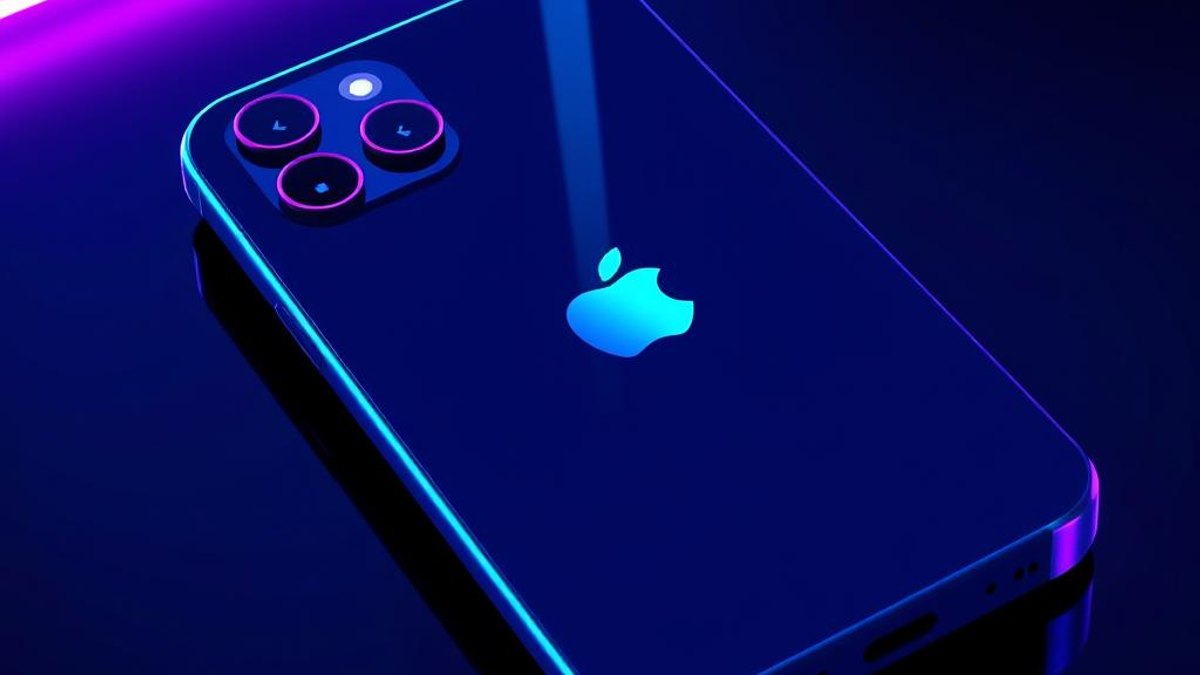
Buried in iPhone accessibility settings is a feature called Back Tap. It turns the entire back of your phone into a programmable button: double-tap or triple-tap the back panel — even through most cases — and the iPhone triggers any action you assign.
Because Back Tap can launch Shortcuts, it isn't limited to system actions. It can run entire automations: text your partner you're on the way, log your weight, toggle your smart lights, or open your most-used app instantly.
Why It Matters
It's the fastest input method on the iPhone — faster than unlocking, finding an app, and tapping. It has existed since iOS 14, works on iPhone 8 and later, and surveys consistently show the vast majority of users have never enabled it.
Who Can Benefit
- Anyone who takes lots of screenshots
- People who use one app or action dozens of times a day
- Shortcuts users who want a physical trigger for automations
- Users with mobility needs who find button combos difficult
02. Step-by-Step Guide
- 1
Open the hidden setting
Go to Settings → Accessibility → Touch, then scroll to the very bottom and tap Back Tap.
- 2
Choose Double Tap
Tap 'Double Tap' and pick an action — Screenshot, Camera, Flashlight, Mute, Control Center, or any installed Shortcut.
- 3
Choose Triple Tap
Assign a second, different action to 'Triple Tap'. Two invisible buttons, zero hardware.
- 4
Test it through your case
Firmly double-tap the center-back of the phone with one finger. It works through most non-rigid cases.
- 5
Level up with Shortcuts
Create a Shortcut (e.g. 'Send my ETA to home') in the Shortcuts app, then assign it to Back Tap for a one-gesture automation.
Pro Tips
- Screenshot on double-tap is the most popular setup — try it first.
- If it triggers accidentally, use Triple Tap only; false positives are much rarer.
- Pair it with a 'Do Not Disturb until I leave this location' Shortcut for meetings.
Warnings & Limitations
- Requires iPhone 8 or later running iOS 14+.
- Very thick or rigid cases can reduce tap detection.
Related Tricks
Most Windows 11 Users Don't Know Copilot+ Can Translate Live Audio On-Device
Copilot+ PCs can turn any video, meeting, or podcast into live translated captions — processed entirely on your device, never touching the cloud.
Most Safari Users Don't Know It Can Translate Any Webpage—No Extension Needed
Safari has translated foreign webpages natively since 2020, yet most people still hunt for extensions or VPNs. The button is hiding in plain sight in your address bar.
Most iPhone Users Don't Know iOS 26 Will Wait on Hold For Them
iOS 26's Hold Assist listens to customer service hold lines so you don't have to—then rings you the moment a real person picks up. You get your time back.