
Most Safari Users Don't Know It Can Translate Any Webpage—No Extension Needed
Safari has translated foreign webpages natively since 2020, yet most people still hunt for extensions or VPNs. The button is hiding in plain sight in your address bar.
01. What It Is
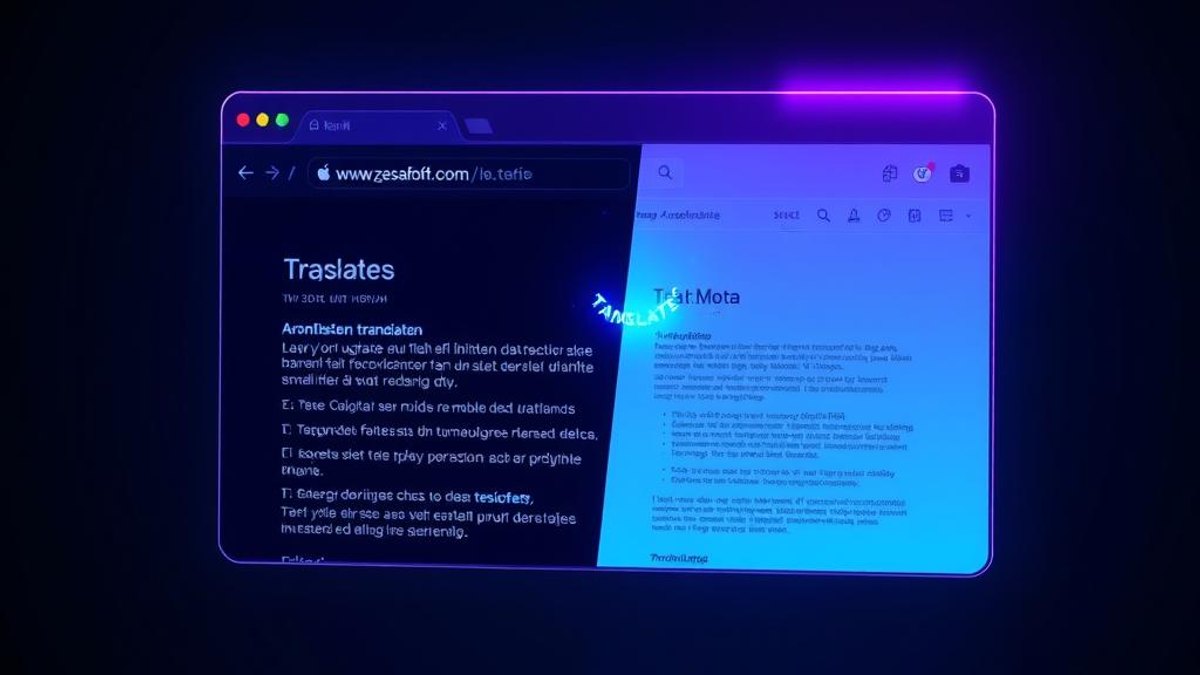
Safari includes a full webpage translation engine built directly into the browser—no add-ons, no third-party plugins, and no VPN. When you land on a page written in a supported language, a Translate button quietly appears in the Smart Search field (the address bar), ready to convert the entire page into your language.
Behind the scenes, Apple processes the translation and then discards the webpage contents once it's done. The convenience factor is what makes it stick: after you enable translation for a website once, Safari remembers and automatically translates other pages from that same domain going forward.
It's been available since iOS 14 and macOS Big Sur (around 2020), and works across iPhone, iPad, and Mac. Yet because there's no obvious menu labeled 'Translate,' most users—even power users—never realize the feature exists at all.
Why It Matters
Foreign-language articles, product pages, foreign news sites, and research suddenly become readable in one tap—without installing anything, paying for a service, or routing your traffic through a VPN. Combined with Safari's speed and native language tools, it turns the browser into a built-in translator you already own.
Who Can Benefit
- International shoppers reading foreign product listings and reviews
- Students and researchers accessing sources in other languages
- Travelers navigating region-specific websites
- Anyone who wants translation without the privacy and clutter of extensions
02. Step-by-Step Guide
- 1
Open a page in a supported language
Navigate in Safari to any webpage written in a language other than your device language—for example a French news site or a Japanese store.
- 2
Look for the Translate button in the address bar
Tap or click the Smart Search field (the address bar). When translation is available for that page, a Translate button appears. On iPhone/iPad it's the small 'aA' or translate icon; on Mac it's a translate icon on the right side of the field.
- 3
Tap Enable Translation the first time
On your very first use, Safari shows an 'Enable Translation' permission prompt. Confirm it once and the page translates immediately.
- 4
Choose your target language
Select the language you want the page translated into from the list of supported languages.
- 5
Let it auto-translate the rest of the site
After the first translation on a domain, Safari automatically translates subsequent pages from that same website—no need to tap the button again.
Pro Tips
- Supported languages include English, Spanish, French, Italian, German, Russian, Portuguese, Japanese, Chinese, Korean, Ukrainian, Polish, Arabic, Dutch, Indonesian, Thai, Turkish, and Vietnamese.
- Use Private Browsing mode when translating sensitive pages if you'd rather Apple not retain the webpage address.
- If the Translate button doesn't appear, the page may already match your device language, or translation may not be available for that language pair in your region.
Warnings & Limitations
- Availability of translation and the number of supported languages can vary by country or region.
- In non-Private Browsing mode, Apple stores the webpage address for up to five years, though the page contents are discarded after translation.
- Requires Safari on iOS 14+, iPadOS 14+, or macOS Big Sur or later—older systems won't have the feature.
Related Tricks
Most Travelers Don't Know Their Phone Can Translate With Zero Internet
Download language packs before your trip and your phone becomes a private, offline translator that works anywhere — even on a plane, in a subway, or a village with no signal.
Most Windows 11 Users Don't Know Copilot+ Can Translate Live Audio On-Device
Copilot+ PCs can turn any video, meeting, or podcast into live translated captions — processed entirely on your device, never touching the cloud.
Most iPhone Users Don’t Know Their Phone Has a Secret Invisible Button
Your iPhone's back panel is a hidden button. Double or triple tap it to take screenshots, launch the camera, run Shortcuts — anything you want.