
Most iPhone Users Don't Know They Can Transcribe Any Live Call in Real Time
Your iPhone can turn spoken audio from phone calls, FaceTime, and meetings into on-screen text instantly — no recording app, no subscription, no permanent recording required.
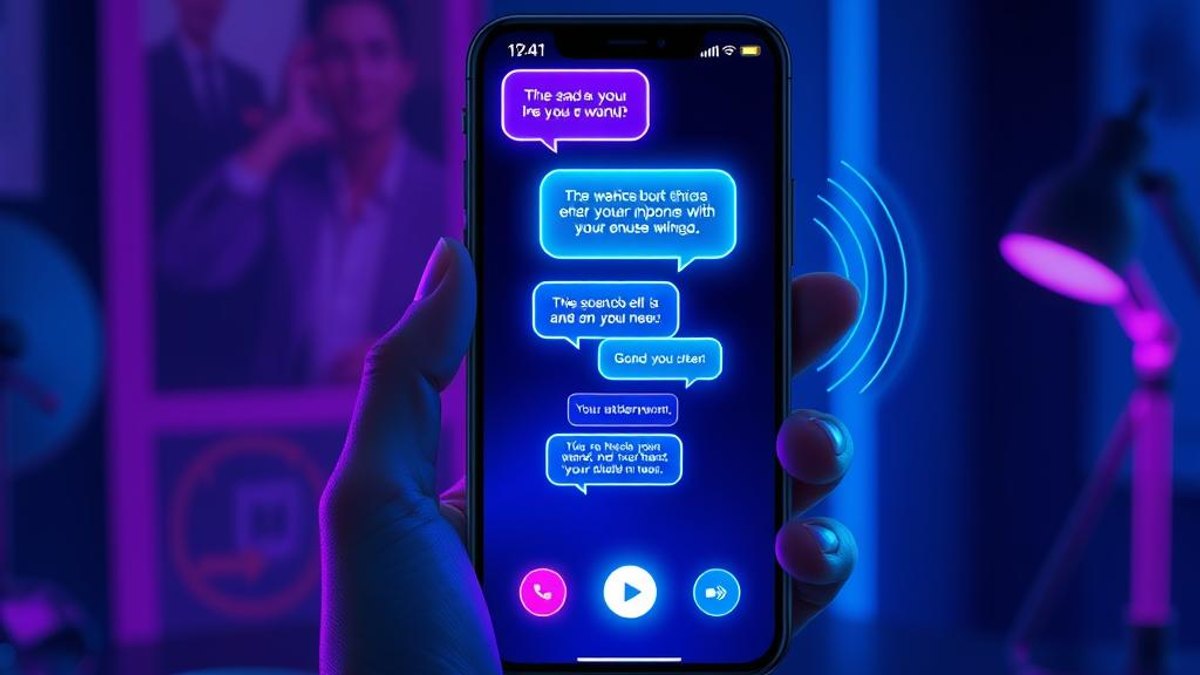
01. What It Is
Live Captions is a built-in iPhone accessibility feature that listens to spoken audio and displays a running transcript on your screen in real time. It works for phone calls (cellular and Wi-Fi calling), FaceTime, third-party calling apps, and even videos or in-person conversations near your phone.
Unlike a dedicated transcription app, Live Captions doesn't necessarily create a permanent recording. You choose how long captions stick around: a 1-minute mode that clears everything when the call ends, or a 1-hour mode that lets you copy, screenshot, and screen-record the transcript. Everything is processed on your device and shown as it happens.
Because it's part of iOS Accessibility, there's no separate download, no account, and no cost. You simply switch it on in Settings and it begins captioning the audio it hears, letting you read along when listening is hard, when audio is muddy, or when you just want a written trail of what was said.
Why It Matters
This replaces paid transcription apps for casual needs and lets you follow conversations you might otherwise miss — in noisy environments, when audio quality is poor, or when you need to read instead of listen. With the 1-hour mode you can copy key details from a call without scrambling to take notes, all without paying for anything extra.
Who Can Benefit
- People who are deaf or hard of hearing
- Anyone on calls in noisy or quiet-required environments
- Professionals who want a quick written reference from a call
- Non-native English speakers who follow text more easily
- Anyone who hates taking notes while talking
02. Step-by-Step Guide
- 1
Open Accessibility settings
Go to Settings > Accessibility on your iPhone. This feature requires an iPhone 11 or later.
- 2
Turn on Live Captions
Tap Live Captions and toggle it on. A floating caption window will appear that you can move and resize on screen.
- 3
Choose your call caption retention
In the Live Captions settings, pick how captions are handled during calls: '1 Minute' clears captions after the call ends and blocks copying or screenshots, while '1 Hour' saves captions for up to an hour and lets you copy, screenshot, and screen-record them.
- 4
Understand the announcement
If you select the 1-hour option, all participants on the call will hear an automated audio message — 'This call is being transcribed' — at the start of the call. The 1-minute option does not announce this.
- 5
Start a call or play audio
Begin a phone call, FaceTime, or third-party call (or play any audio nearby). The caption window automatically transcribes the spoken audio in real time.
- 6
Read along and capture what you need
Follow the live text as it scrolls. In 1-hour mode, select and copy text or take a screenshot if you want to keep a detail. In 1-minute mode, just read along — it won't be saved.
Pro Tips
- Drag the caption window to wherever it's least distracting, and tap to expand it for longer transcripts.
- Use 1-minute mode for private calls where you only need to follow along, and 1-hour mode when you genuinely want to capture details.
- Pair Live Captions with Wi-Fi calling in low-signal areas where audio breaks up — reading helps fill the gaps.
- Turn the feature off when you're done to save battery, since it runs continuously while active.
Warnings & Limitations
- Live Captions currently supports only English (U.S. and Canadian) and is not available in all countries or regions.
- Apple warns that accuracy may vary — do not rely on it in high-risk or emergency situations.
- The feature uses additional battery while running.
- Transcription is manual: you must enable it; it does not happen automatically on every call.
- Selecting the 1-hour retention option triggers an audible announcement to all call participants that the call is being transcribed.
Related Tricks
Most iPhone Users Don't Know Their AirPods Can Trigger the Camera
iOS 26 turned AirPods into a hands-free camera remote. Squeeze your earbud and your iPhone snaps the shot—no reaching for the screen.
Most iPhone Users Don't Know iOS 27 Finally Separates Alarm Volume From Notifications
For 15 years your alarm and your text tones shared the same volume. iOS 27 quietly ends that with independent sliders for alarms, ringtones, and system sounds.
Most iPhone Users Don't Know iOS 18 Can Lock Any App With Face ID
No password managers, no Screen Time hacks. iOS 18 quietly added a native way to lock Notes, Photos, or almost any app behind Face ID—straight from the Home Screen.