
Most Microsoft 365 Users Still Type Their Problems—Copilot Vision Lets You Just Show It
Stop describing that broken formula or confusing error. Copilot Vision reads your live screen or camera feed while you talk, turning 'let me explain' into 'look at this.'
01. What It Is
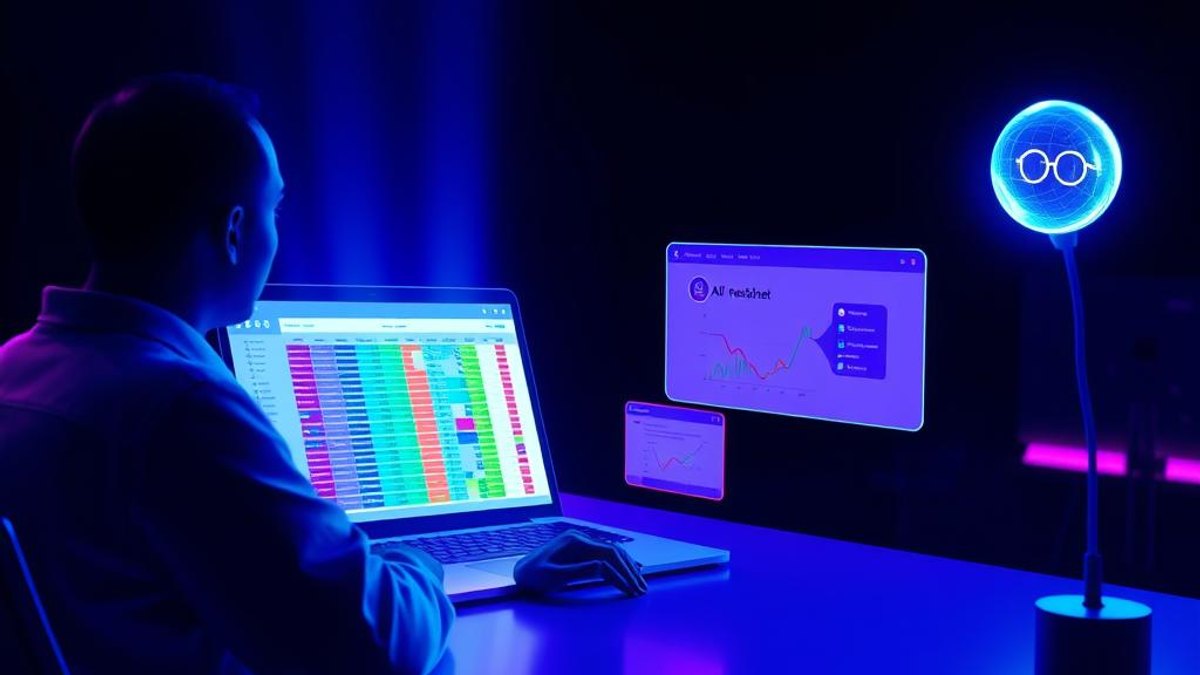
Microsoft 365 Copilot Vision is a multimodal capability that lets Copilot see what's on your desktop screen or through your phone's camera during a live voice conversation. Instead of copying error messages, screenshotting spreadsheets, or writing paragraphs to describe a layout problem, you simply share your screen and talk to Copilot about what you're both looking at.
Rolled out to worldwide standard multi-tenant customers starting in June 2026, Vision works across Windows and web desktop, plus iOS and Android mobile. You start a session by clicking the glasses icon in the Copilot composer or app, then choose which screen or app to share. On desktop you can even share two apps at once, giving Copilot the context to help you move information between them.
Crucially, Vision only works during voice conversations, not text chat. Everything is session-bound: the moment you end the session, all shared context and images are immediately cleared and deleted. Microsoft does not use these images to train models, and any audio/video temporarily kept for feedback is deleted after 48 hours.
Why It Matters
Explaining a technical problem in text is slow and error-prone—you paraphrase the error, miss the detail that matters, and go back and forth. Vision collapses that friction: Copilot sees exactly what you see and responds in real time. For a stubborn spreadsheet, a cryptic error dialog, or a document you need reworked, 'show me' is dramatically faster than 'let me describe it,' saving minutes on every troubleshooting or review session.
Who Can Benefit
- Knowledge workers troubleshooting spreadsheet formulas or error messages
- Support and IT staff who need to understand a colleague's screen quickly
- People reviewing documents, slides, or layouts and wanting live feedback
- Mobile users who want to point their camera at a physical document or object
- Anyone who finds it faster to demonstrate a problem than to describe it
02. Step-by-Step Guide
- 1
Confirm your access
Vision requires a Microsoft 365 Copilot license or Copilot Chat access. It's available in the Microsoft 365 Copilot app, Outlook, Teams, and web experiences. If it's missing, your administrator may have disabled it.
- 2
Start a voice session
Open Copilot in one of the supported apps and begin a voice conversation. Vision works only with voice, not with typed chat, so make sure you're in voice mode.
- 3
Click the glasses icon
In the Copilot composer or app, tap the glasses icon to initiate a Vision session. This is what tells Copilot to start looking at your shared content.
- 4
Choose what to share
Select the desktop screen or app you want Copilot to see—or, on mobile, point your camera at the document or object. On desktop you can share two apps at once so Copilot can help you switch context between them.
- 5
Talk through the problem
Speak naturally about what's on screen: 'Why is this formula returning an error?' or 'Help me tighten up this paragraph.' Copilot responds based on what it sees in real time.
- 6
End the session to clear everything
When you're done, end the Vision session. All shared context and images are immediately cleared and deleted—nothing lingers on your screen or in the conversation.
Pro Tips
- Share two apps at once on desktop when you need Copilot to help move data or context between them—like a spreadsheet and an email.
- On mobile, use the camera feed to show Copilot a printed document, a whiteboard, or a physical object, not just what's on your screen.
- Because Vision counts toward your voice usage capacity, keep sessions focused and end them when you're done to conserve your daily allowance.
- Have Copilot walk you through a fix verbally while you keep the app open—no need to alt-tab back and forth.
Warnings & Limitations
- Vision only works in voice conversations—it won't activate in text-only chat.
- Daily usage counts toward your available voice usage capacity, so heavy use may hit limits.
- Administrators can enable or disable Vision for an organization, so it may not be available even with a license.
- It requires a Microsoft 365 Copilot license or Copilot Chat access—it isn't part of the free consumer tiers.
- This is an enterprise rollout that began in June 2026 for standard multi-tenant customers; availability can vary by tenant configuration.
Related Tricks

Most Copilot Users Don't Know It Can Watch Your Screen and Explain Dashboard Errors Out Loud
Stop typing long descriptions of what's on your screen. Copilot Vision lets you share your live desktop during a voice chat and simply ask what that confusing error or chart means.
Most Claude Users Don't Know It Can Read and Edit Their Notion Pages Directly
Claude now has an official Notion connector built right into Settings—no API keys, no Zapier, no third-party glue. Pull entire workspaces into a chat and edit pages while you talk.
Most Microsoft 365 Teams Don't Know Copilot Can Build Fully Sourced Reports From a Single Chat
Copilot's Researcher Agent orchestrates an entire multi-source research workflow — web plus your work data — and hands you a structured, citation-backed report ready to export. Most teams are still drafting these by hand.