
Most Canva Users Don't Know It Now Remembers Your Brand Style Forever
Canva AI 2.0 quietly learns your colors, fonts, and design taste—then applies them automatically to everything it generates. Set it once, stay on-brand forever.
01. What It Is
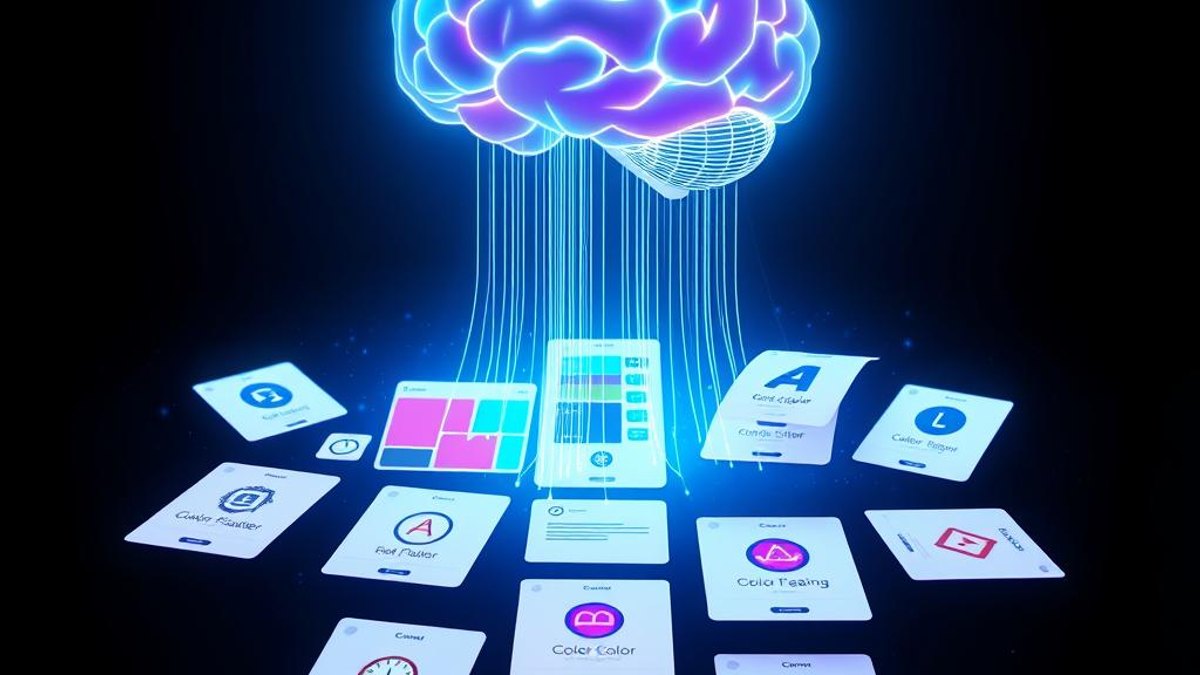
Canva AI 2.0, unveiled as a research preview at Canva Create in April 2026, introduced a feature called Living Memory (powered by a system Canva calls the Memory Library). Instead of treating every AI request as a blank slate, Canva now studies your most recent relevant designs to understand your style, brand colors, fonts, and creative preferences.
From that analysis, Canva builds an 'About Me' profile document—a living summary of how you like to design. This profile keeps learning over time as you create more designs and interact with Canva AI, so the more you use it, the sharper its sense of your creative fingerprint becomes.
Once Living Memory understands you, every design Canva AI generates automatically leans on your brand style, fonts, and colors, and it also ties into your Brand Kit to keep everything consistent. You stop re-explaining your look with every prompt, and new designs arrive already close to on-brand.
Why It Matters
Staying on-brand normally means manually fixing colors, swapping fonts, and re-styling every AI draft—minutes lost on every single design. With Living Memory, that adjustment work is largely front-loaded and automated, so a first draft lands closer to final. For anyone producing dozens of graphics a week, that consistency and time savings compound fast.
Who Can Benefit
- Solo creators and freelancers who manage multiple client brands
- Small business owners who want a consistent look without a designer
- Marketing and social media teams producing high volumes of on-brand content
- Educators and organizations standardizing visuals across many documents
02. Step-by-Step Guide
- 1
Confirm you're on a paid plan
Living Memory and full Canva AI 2.0 features require Canva Pro, Teams, Business, Enterprise, or Education. Free accounts only get limited Canva AI 1.0 features and won't see Living Memory.
- 2
Check that the preview has reached you
Canva AI 2.0 is rolling out gradually as a research preview, so it may not appear for every eligible account yet. If you don't see Memory options, it likely hasn't rolled out to you.
- 3
Build up some designs first
Living Memory learns from your recent relevant work. If your account is new or sparse, early memory will be limited—create and save a few on-brand designs so the AI has material to study.
- 4
Set up your Brand Kit
Add your logo, brand colors, and fonts to your Brand Kit. Living Memory integrates with it, so a well-filled Brand Kit reinforces what the AI applies to generated designs.
- 5
Use Canva AI to generate designs
Prompt Canva AI as usual. With Living Memory active, it automatically applies your learned style, fonts, and colors—no need to describe your brand every time.
- 6
Review and manage your memory
Open Settings > AI personalization > Manage memories, or click 'Memory' at the bottom of your Canva AI chat history, to view and adjust the About Me profile Canva has built.
Pro Tips
- Each new chat starts fresh for conversation context, but your personal preferences (style, colors, tone) persist in the About Me profile—so you don't lose your brand identity between sessions.
- The profile improves with use. Keep creating and interacting with Canva AI, and it refines its understanding of your taste over time.
- A complete Brand Kit gives Living Memory stronger signals—invest a few minutes there for better auto-styling.
- You can review the About Me document to sanity-check how Canva is describing your style before trusting it on important projects.
Warnings & Limitations
- This is not available on free accounts—you need a Canva Pro, Teams, Business, Enterprise, or Education plan.
- It's a research preview rolling out gradually; availability varies and features may change.
- Early memory may be inaccurate or thin if you don't have many saved designs yet.
- You can turn it off anytime in Settings under AI personalization by disabling 'Living Memory'.
- Your memory profile is personal and, according to Canva, is not used to train Canva AI more broadly.
Related Tricks
Most Figma Designers Don't Know Layers Can Become Live Interactive Code on the Canvas
A single click can turn a static Figma layer into working, interactive code—flyouts, dropdowns, maps, and animations—without ever leaving the canvas.
Most Figma Users Still Export to Photoshop for This — They Don't Need To Anymore
Figma can now strip the background out of any image right inside your design file, no round-trip to a photo editor required. Here's the catch most people miss about what it actually does.

Most Figma Designers Still Queue AI Edits One at a Time — You Don't Have To
Figma Agent can run multiple AI image edits in parallel while you keep designing. No waiting between iterations means your exploration cycle just got dramatically faster.