Design Once, Get 20 Formats: Canva’s Resize Trick Most Creators Ignore
Magic Switch converts one design into every social format at once — Instagram post, story, YouTube thumbnail, LinkedIn banner — with layouts intelligently rearranged.
01. What It Is
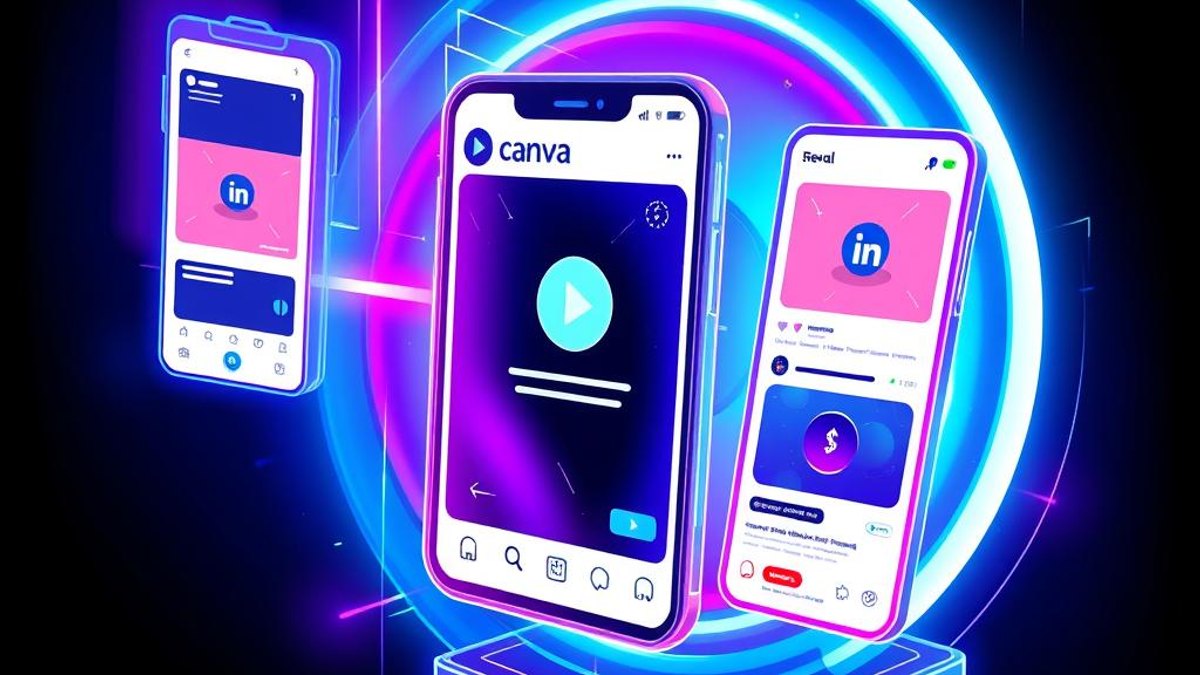
Canva's Magic Switch (the Resize button at the top of the editor) doesn't just stretch your design to new dimensions — it re-lays-out the elements for each target format. Pick ten formats at once and Canva generates ten adapted copies of your design in one click.
Combined with Brand Kit (your saved fonts, colors and logos), one master design becomes an entire cross-platform campaign in minutes instead of an afternoon.
Why It Matters
Publishing the same content to Instagram, TikTok, YouTube, X and LinkedIn means redesigning the same graphic five times. This collapses the most tedious part of content creation into a single click — the difference between posting everywhere and posting where you have energy left.
Who Can Benefit
- Social media managers running multi-platform accounts
- Small businesses without a dedicated designer
- Content creators repurposing one idea across platforms
- Marketing teams that need consistent campaign assets fast
02. Step-by-Step Guide
- 1
Create your master design
Design your strongest format first — usually the Instagram post (1080×1080) — with all text, images and branding final.
- 2
Open Magic Switch
Click 'Resize' (Magic Switch) in the top toolbar of the editor.
- 3
Select multiple formats
Check every format you need: Instagram Story, YouTube Thumbnail, LinkedIn Post, Facebook Cover, X Post — or enter custom dimensions.
- 4
Choose 'Copy and resize'
Always pick 'Copy and resize' instead of 'Resize this design' so your master stays untouched and each format becomes its own design.
- 5
Do a 30-second pass on each
Canva rearranges intelligently but not perfectly. Nudge text and crop focal points on each copy — seconds, not minutes.
Pro Tips
- Set up your Brand Kit first — resized copies keep your exact fonts and colors automatically.
- Group related elements before resizing; grouped items travel together across formats.
- Name the master design clearly (e.g. 'JUNE-PROMO-MASTER') so edits start from the right file.
Warnings & Limitations
- Magic Switch requires Canva Pro (or a Teams/Education plan) — the free plan can't resize.
- Extremely text-heavy designs adapt worst; keep master designs visual.
Related Tricks

Most Canva Users Don't Know It Now Remembers Your Brand Style Forever
Canva AI 2.0 quietly learns your colors, fonts, and design taste—then applies them automatically to everything it generates. Set it once, stay on-brand forever.
Most Figma Designers Don't Know Layers Can Become Live Interactive Code on the Canvas
A single click can turn a static Figma layer into working, interactive code—flyouts, dropdowns, maps, and animations—without ever leaving the canvas.
Most Figma Users Still Export to Photoshop for This — They Don't Need To Anymore
Figma can now strip the background out of any image right inside your design file, no round-trip to a photo editor required. Here's the catch most people miss about what it actually does.